Showing posts with label Tutorials. Show all posts

Thursday, 17 May 2012

Choosing your hooks

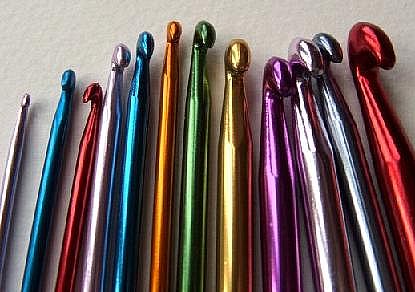
Just like yarn comes in hundreds of variations, there are many types of hooks to choose from as well. Hooks  can come in different shapes, sizes and textures, all having an effect on your end result.

While the hook size should be based around the yarn & pattern you are using, what the Hook is made from is really down to your own preference. The most common materials you'll find hooks made from are metal, wood and plastic.

Metal Hooks in the UK at least the most common hook materials you'll find to buy in shops, they are strong, durable and smooth. Generally they will be made from aluminium or steel. Metals typically have a looser grip on yarns, allowing you to crochet faster. Metal hooks come in a huge range of sizes from giant 25mm hooks for the bulkiest of yarns to tiny 0.5mm for the most delicate of lace.


Wood hooks can be made in many different types of wood like bamboo. They are smooth and relatively light, Wood hooks tend to have a stronger grip on yarn, so may be a better choice to some very silky yarns.


Plastic Hooks are normally made of acrylic, and are lightweight. They tend to be somewhere in between metal and wood in terms of gripping yarn.


It's good to consider having multiple hooks of varying materials, because their properties may have different effects on your gauge, and general ease to working with different types of yarns.


Friday, 6 April 2012

Cross Stitch Needle Guide


I've written up a short guide as to which size of Tapestry/Cross Stitch Needle to use with your project.

Tapestry/Cross Stitching Needles

Tapestry/Cross Stitching Needles have a large eye and a rounded tip. They are generally used for counted thread embroidery including cross stitch, blackwork and hardanger. The rounded tip makes it easier for the needle to pass through the holes in the fabric without tearing or splitting the fibres.

As a general guide here are the size of needled recommended for different fabrics.

Needle Size      Fabric Size
Size 18        -   6 count Aida Fabric
Size 20        -   8 count Aida Fabric  
Size 22        -   11 count Aida Fabric / 22-25-27 count evenweave
Size 24        -   14 count Aida Fabric / 28 count evenweave   
Size 26        -   16 count Aida Fabric / 32 count evenweave
Size 28        -   18 count Aida Fabric / 36 count evenweave.

As you can see, the higher the Needle size, the smaller the needle is.

Notes: If you are making fractional Stitches into Aida fabric you my find that using a smaller needle helpful since you sew through the middle of the fabric rather than the holes.


Beading Needles


Beading needles are designed to make treading and attaching small seed or bugle beads on to your work easy. Due to needing to fit through the centre of tiny beads the eyes and body of this needle are very small, the thinness of these needles also make them rather fragile.

~~~~~~~~~~~~~~~~~
You can find links to all of my Cross Stitching Tutorials by clicking on the link in my Side Bar.

Thursday, 5 April 2012

How to use photo masks in Paint Shop Pro

This Tutorial will cover what you need to know about using masks in your Digital Scrapbooking Pages

For this tutorial I'll be using Coral Paint Shop Pro X, and should cover different versions of that program. (If it doesn't please get in touch and I'll update this tutorial).

What you'll need.

First you'll need a mask, for this tutorial I'm going to use some that you download for free over at Pixel Scrapper.
http://www.pixelscrapper.com/marisa-lerin/templates/photo-mask-19-image-commercial-use-digital-scrapbooking-free-download


A Photo to use the mask with. I'm using this one of the Tree of Life (Credits to Mark Barbieri, he has posted a bunch of pictures over at Mousescrappers for people to scrap with.)

Extras: If you're making a Digital Scrapbooking page you may want to use a Digital Scrapbooking Kit to go with it. I'm going to be a little lazy and just use a Pre-Made Paper stack for this Tutorial.

This was made by Linda over at MJ-AJ Designs using a Kellybell Designs Kit called "Around the Riverbend".

I'll also use some Pre-made Word Art from the same KellyBell Kit, this time it was made by
Jessica over at Handbags & Scrapbooks.

Once you've got all that open up all 4 files in Paint Shop Pro.


Copy and paste your photo as a new layer onto your paper stack. (Feel Free to resize your photo if needed.).


 Next up make sure your Photo layer is selected (silly me in the picture below had selected the wrong one).
Then go to Layers > New Mask Layer > From Image.


You'll then get a box pop up like the one Below.

In the Source Window, you'll find a drop down list of all your currently open files. Pick your Mask file in this list. 
Then in the Create mask from, choose Source opacity. Then ok.


You can see a little bit of the mask in the above picture, but it needs a little resizing. Have a play changing the scale of the mask layer and photo layer and the positions of both on the page until you get something you're happy with.


There. As you can see I've added my Word art layer on top of my work. I think I would like to change the position of my Photo just a tad.

As seen above select the Group layer of and right click. Chose Merge and then Merge Group. You can now reposition it on your page.


When your happy with that, you're all done. Make sure to use "Save As" with your file and change your file name so you don't save over your paper stack file.

You can find links to all of my tutorials by clicking on the buttons over in my side bar.